Search
You can filter data reads by tags using the Advanced Search feature in Tool Lookup. This allows you to find all reads that have specific tags assigned.
Searching by Tags
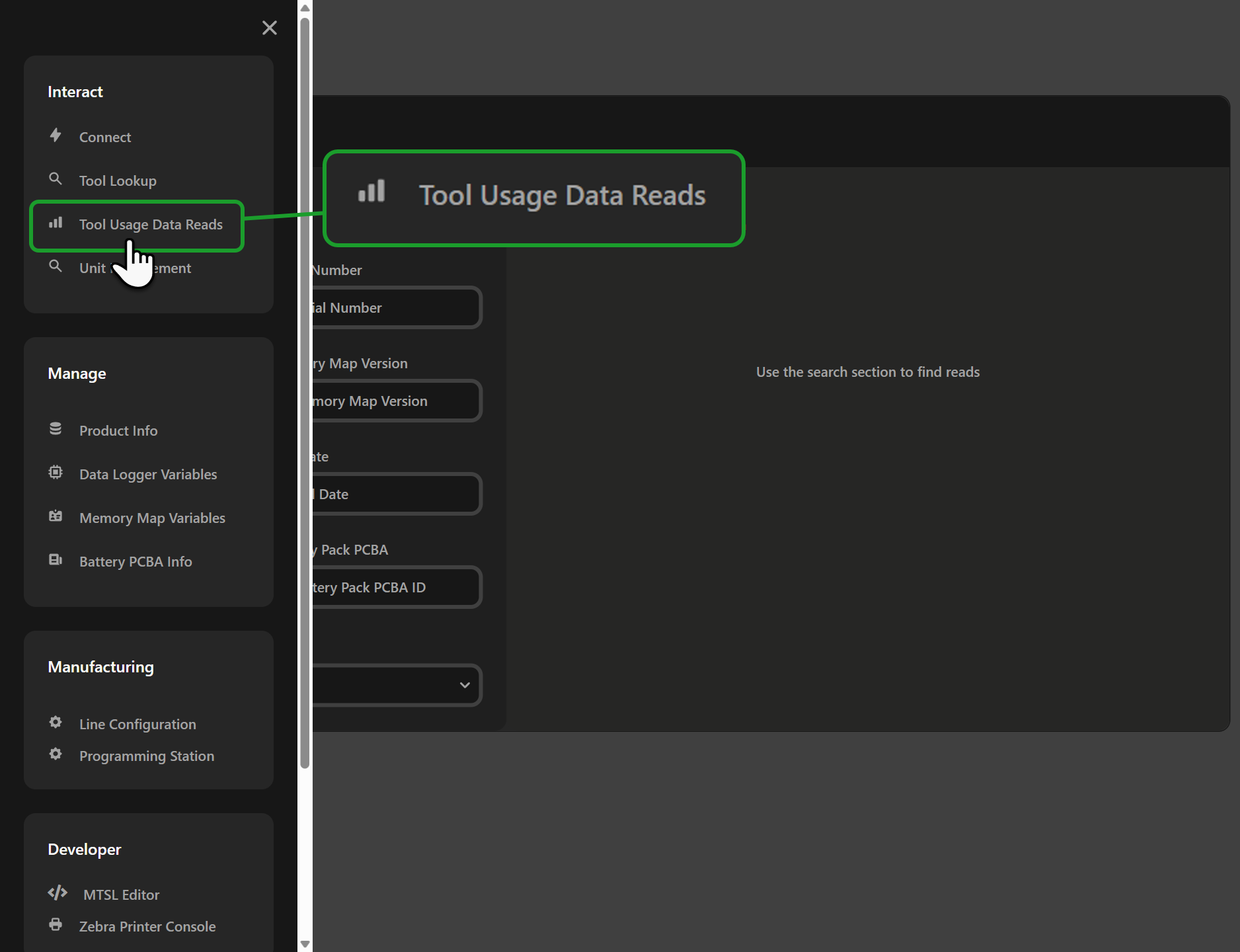
Step 1: Access Tool Usage Data Reads
Navigate to the Tool Usage Data Reads feature in QuickLink.
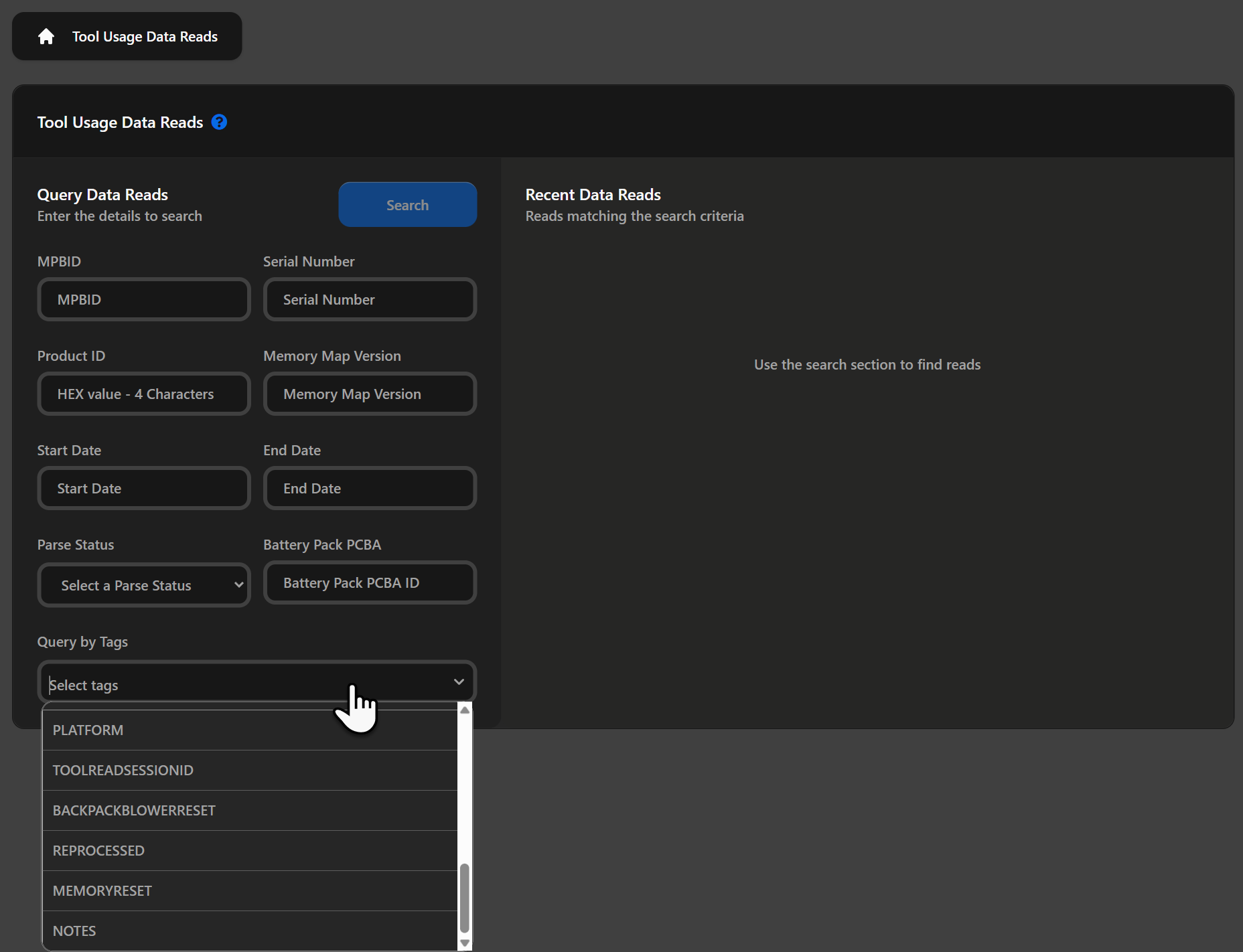
Step 2: Select Tags Dropdown in Search
Click on Query by Tags to search with tag filtering capabilities.
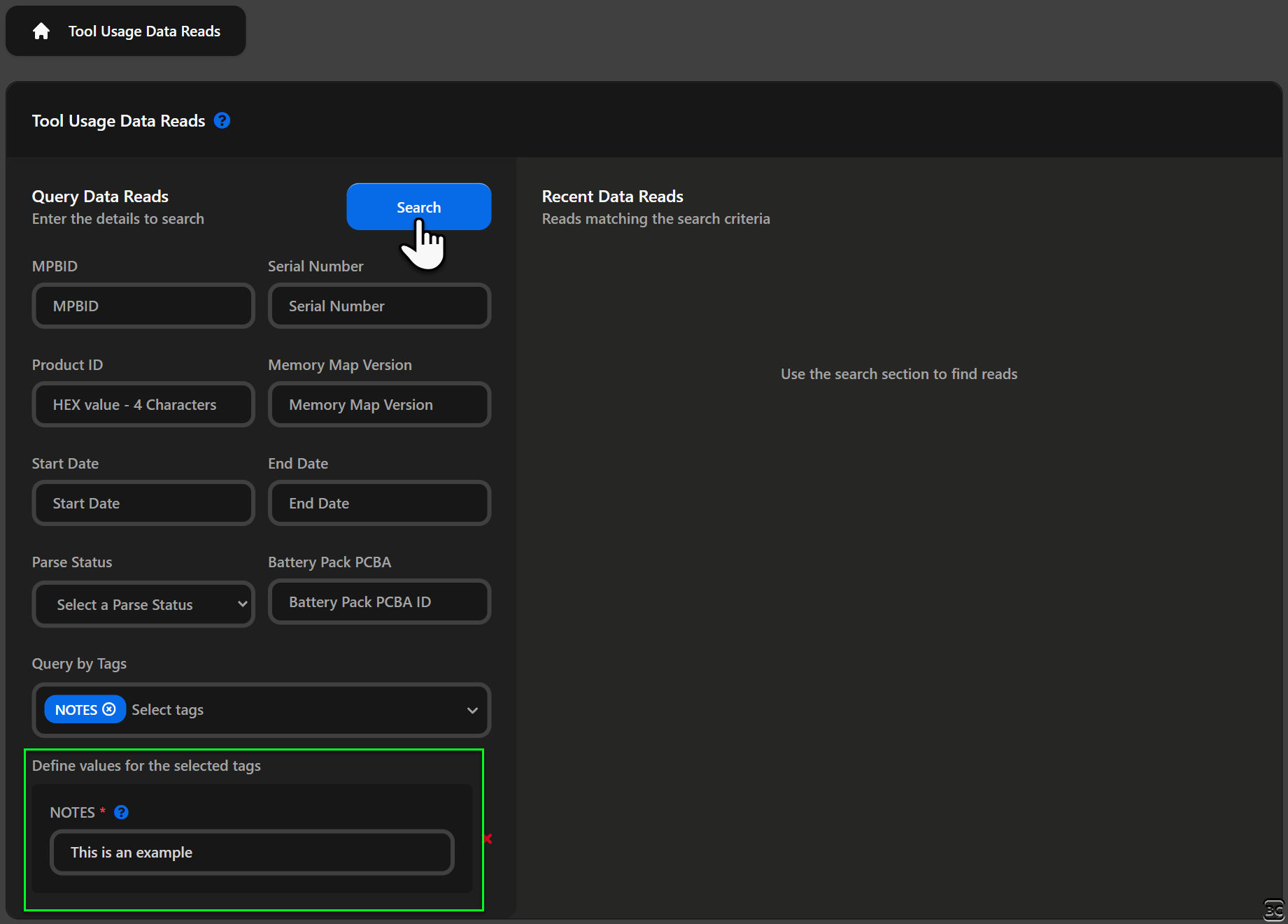
Step 3: Configure Tag Query
In the Tag Query selector, you can choose one or more tags to filter by and specify the value criteria for each tag:
-
Locate the Tag Query selector
-
Select one or more tags to filter by
-
Specify the value criteria for each tag
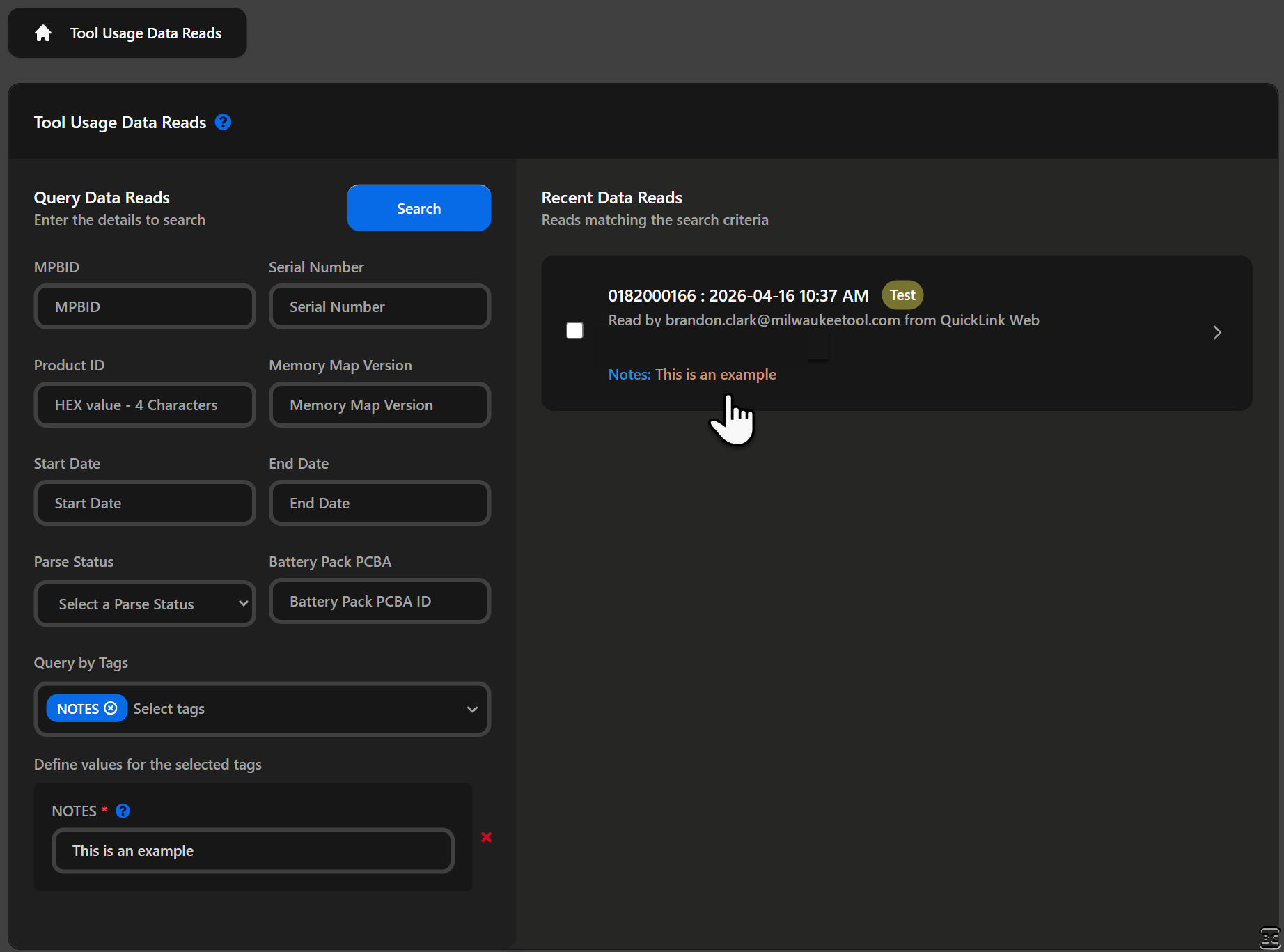
Step 4: View Results
After executing the search, the results will show only data reads that match your tag criteria.
Video Walkthrough
The following video demonstrates the steps above:
Search Tips
Filtering by System Tags
Common system tag searches:
| Tag | Example Use |
|---|---|
ENVIRONMENT | Find all Production or Test reads |
PLATFORM | Find all M18 or MX tool reads |
PROJECTNUMBER | Find reads for a specific project |
CUSTOMER | Find reads associated with a customer |
Filtering by User Tags
Search for reads with specific user-assigned tag values:
- String tags - Enter the exact value or use wildcards
- Number tags - Enter the exact value or a range
- Boolean tags - Select true or false
- Enum tags - Select from the predefined options
Combining Tag Filters
You can combine multiple tag filters to narrow down your search:
- Select the first tag and set its criteria
- Add additional tag filters as needed
- All filters are applied with AND logic (results must match all criteria)
For more information about the overall search functionality, see Querying Tool Data Reads.